
The Conference Zoom Events Platform makes it easy for participants to join our virtual events.
Attendee Registration
Attendees arrive at your event registration page, where they can learn more about the event, including previews of sessions, speakers, and sponsors. They can register using either their Zoom account or their personal email address. Registrants receive a confirmation email with a unique login link to join the event. On the event day, they will click the “Join” button to be routed to the event and join the lobby.
The Lobby of the Event
The lobby contains an event overview, including upcoming sessions, chats, videos, and more.
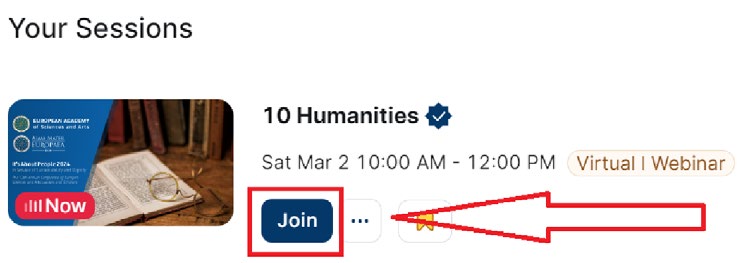
My Schedule
Building a Schedule is as simple as bookmarking sessions of interest. Participants can also network with other attendees who are open to connecting, either within the main lobby chat or through the People tab.
Sessions
When the session starts, participants can join by clicking the “Join” button. They will enter the familiar Zoom webinar or meeting platform to listen to the speakers, ask questions via session Q&A, participate in polls, chat with attendees, review resources, and more.
Speakers
Before the event starts, speakers will be sent a Speaker invitation email from ZOOM Events with the subject line “Event Organizer invited you to be a speaker for ‘It’s About People …’”. This email will contain a unique access link labeled “Agree and Join” to the ZOOM event corresponding to their session. It’s important to note that this access link is intended for personal use only and should not be shared.
By clicking the “Join” button on the ZOOM Event Lobby page (or in Menu Sessions), speakers will be seamlessly connected to either the ZOOM Meeting or the backstage area of the ZOOM Webinar (depending on the session format). Each session will become accessible 30 minutes before its scheduled start time.
Backstage (ZOOM Webinar)
Speakers can prepare their audio and video, practice screen-sharing capabilities, and chat with panelists and IT support without disturbing the live webinar. When presenting, our technical staff will assist in transferring you live on stage, and after you are finished, you will be transferred back to the backstage (or to the attendee list if desired).
Breakout Room (ZOOM Meeting)
Participants in Zoom meetings can utilize the Breakout room labeled “Tech Check” to adjust their audio and video settings and practice screen-sharing functionalities. If they require technical assistance, they can click on “Ask for help” within the breakout room.
Zoom Events Companion App
Attendees can join our hybrid event using the Zoom companion app. This app allows them to attend an in-person or virtual event without leaving the Zoom Events platform. They can find, bookmark, and attend hybrid and virtual events sessions. Attendees can switch between in-person and virtual webinar/meeting sessions. During hybrid events, attendees can connect with in-person and virtual attendees (chat, Q&A, polls, resources and much more). More about the ZOOM Events companion app can be found here.
Need help?
If you have any further questions, feel free to contact us at support@almamater.si or visit the ZOOM Events help center. For IT remote support, please install and run the AnyDesk application, then share your ID with us at support@almamater.si or call us at +386 59 335 079.